
Cisco and Zoom recently announced a significant partnership aimed at improving the compatibility between Cisco devices (Room Bar, Room Kit, Board Pro and Desk Pro series) and the Zoom meeting platform. Eric Yuan, Jeetu Patel, and other Cisco executives made clear that work happens on multiple meeting services.
But what about Video phones?
In this article I’m presenting the results of my tests/experiments to exemplify what options are available for video phones registered to Webex Calling that want to join a Zoom meeting.
Note 1: This content is not sponsored, edited or endorsed by either Zoom or Cisco. The use of the Zoom logo, Zoom product screenshots and other brand items (such as Zoom CRC) have been authorized for educational purposes.
Note 2: all the images you see in this article, with the exception of the two Webex Control Hub screenshots, are real screen captures sourced from a Cisco 8875 running PhoneOS, none of them have been artificially manipulated. Identical results can be obtained on 8845 and 8865 running the MPP firmware, with the obvious difference being imposed by the smaller screen resolution.
High Level Overview
The results of my tests show that it is possible to dial into a Zoom Conference Room Connector (CRC) from a video-enabled Cisco IP Phone (8845, 8865, 8875) registered to Webex Calling, but we need to use the Local Gateway interconnection.
In terms of user experience, there are a couple of scenarios we can cover:
- a generic video IVR that will prompt us for the meeting ID. We’ll call this IVR-based join flow;
- direct dialing into a known meeting ID lobby, for when we provide the meeting number directly in the dialed string (very common when associated to a speed-dial configuration on the phone). This is referenced here as direct-join flow.
Functional Description
I’ve opted to use a short dial prefix that routes (video) calls to Zoom: the prefix can obviously be customized. In my case I went with the code *9 (i.e.: star - Zoom on the dialpad). If you don’t want to use the star, you can achieve identical results with a numeric steering code (like 96 for example, for Z - M on the keypad).
The complete flow is the following:
- the user dials
*9or*9followed by the meeting ID (or simply presses a speed-dial button configured with either of these patterns); - the
*9is converted into a prefix (96in my case) followed by the meeting ID, if available; - Webex Calling routes the call to a dial-plan, associated with a Local Gateway (LGW);
- the LGW sees the call coming from WxC and routes it to a specific outbound dial-peer based on the numeric prefix;
- the dial-peer points towards Zoom CRC over SIP TLS, using DNS to discover the specific Zoom CRC region’s point of presence.
Resulting Experience for the Meeting Participant
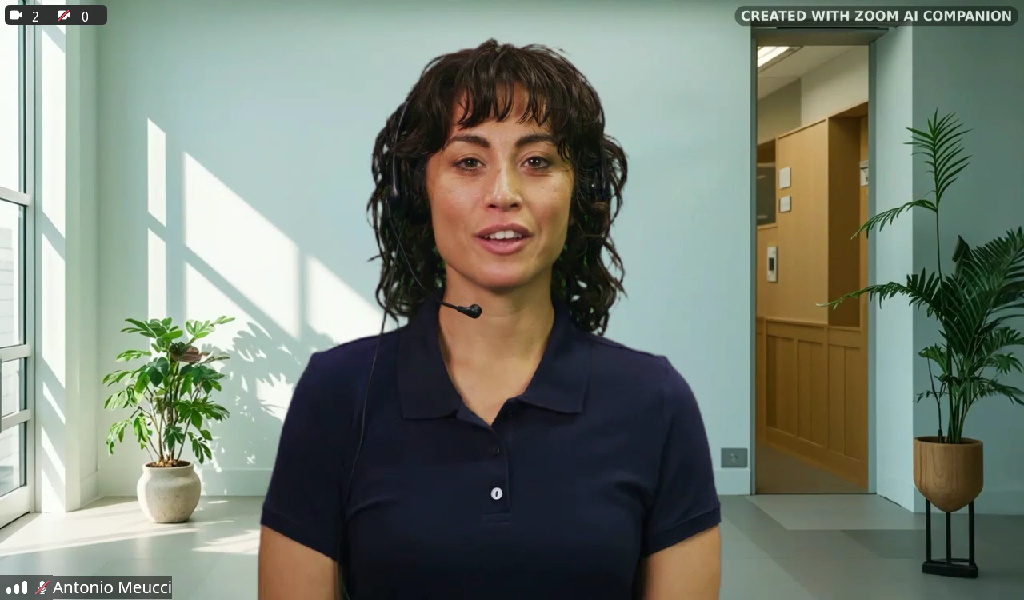
The possibility to dial two digits and being readily welcomed into Zoom CRC is pretty convenient, and once you join the conference, the size of the Phone’s screen is enough to have a good experience (if someone will be sharing dense text, of course this is not the ideal setup, but for a normal meeting with focus on the active speaker I have nothing to complain about).
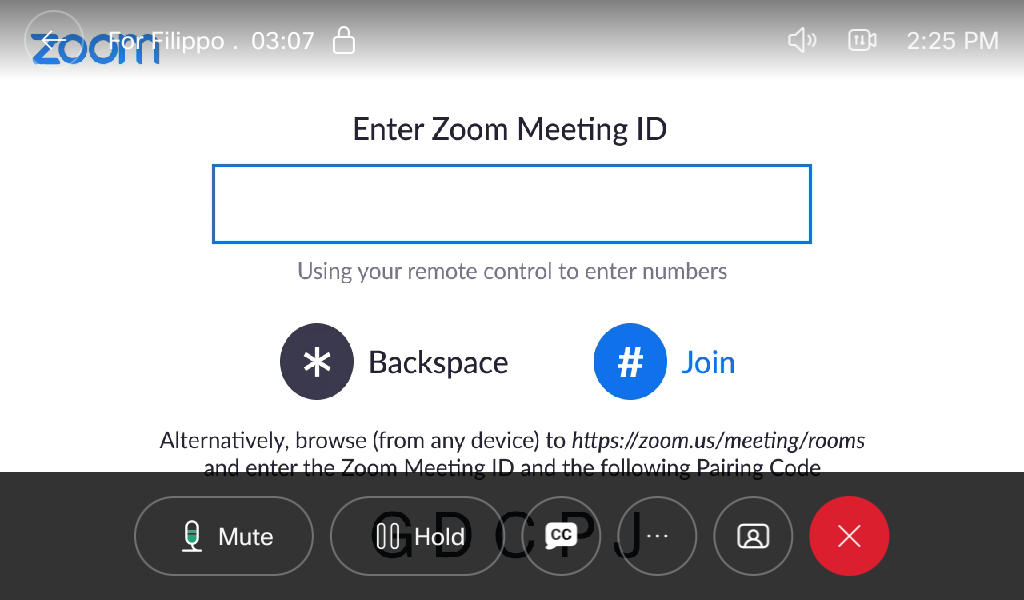
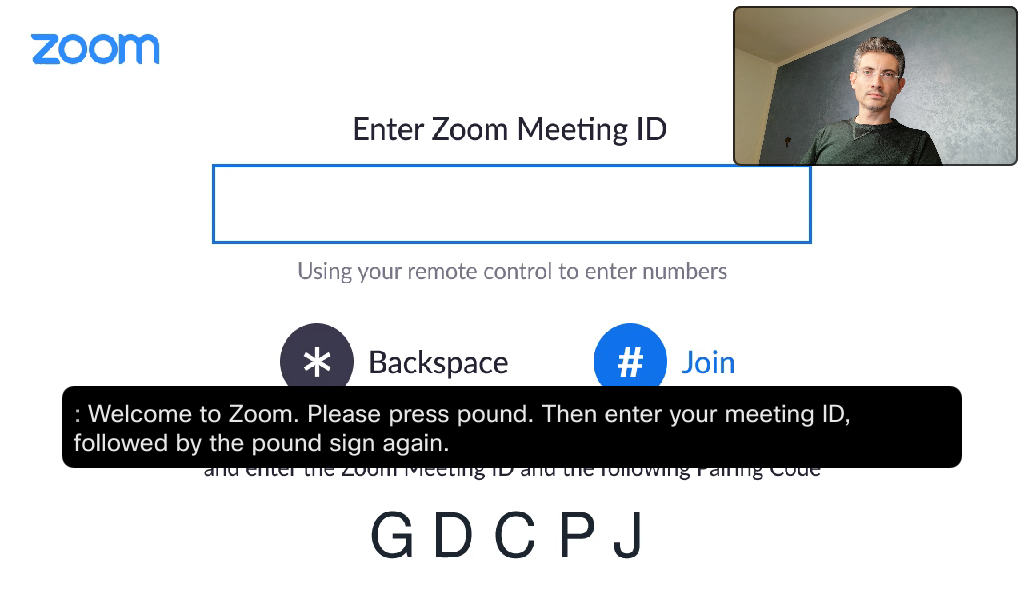
- For the IVR-based join method, after entering
star - 9you will be seeing the Zoom CRC IVR (as overlay you see the 8875 controls on screen):
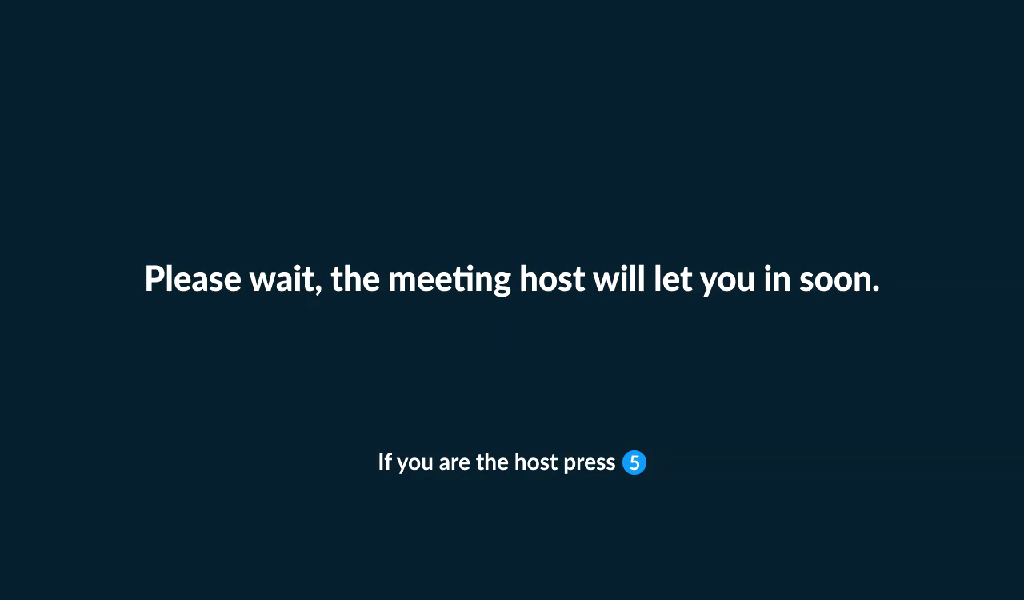
- For the direct-join experience, the meeting ID must be post-pended to the steering prefix. This could be in the form of a speed dial (i.e.:
* 9 <meeting ID>), or, by keying in the full string manually. Depending on how the meeting is configured, before entering the lobby, you might be prompted to enter the pass code:
Once you are admitted into the meeting, the resulting view is this (active speaker mode):
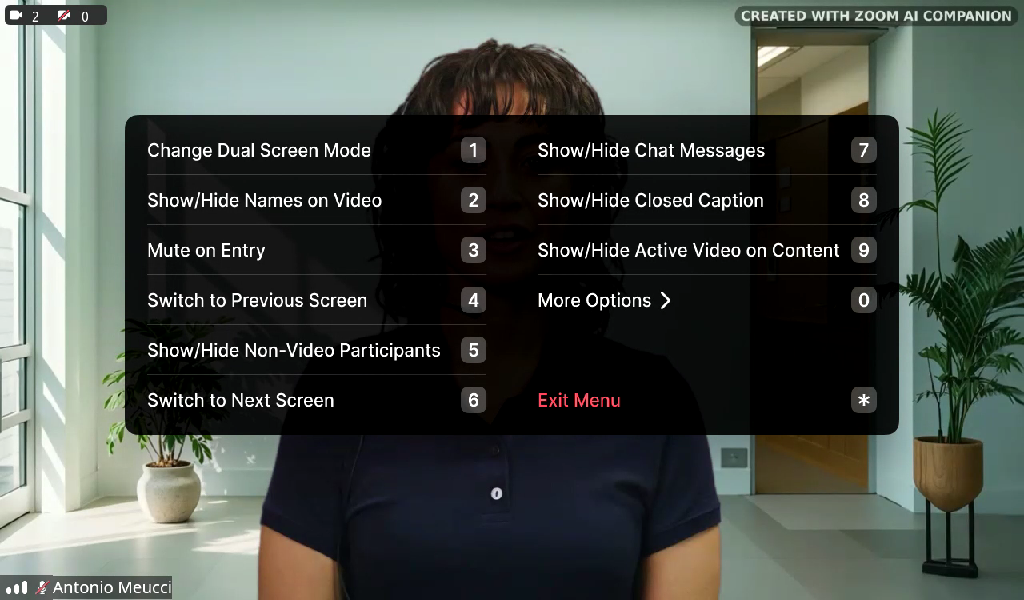
and it can be tuned with a number of options that you access through DTMF (like layout, display chats or closed captioning, etc…):
The quality of the microphone and speaker of the Cisco phones does add to the overall quality of the user experience (for example, I tested closed captioning and translations for a couple of languages and it worked fine, although I have seen a slightly better close captioning performance using the one natively offered by the 8875, both in terms of text readability, and voice recognition accuracy). You can see an example of the Cisco native CC in the image below.
Resulting Experience for the Meeting Host
If you are wondering what it’d be like to use your 8845, 8865 or 8875 as main device while being a meeting host, I can tell you that it’s a pretty solid experience too.
It would be obviously unfair to compare it to the UX of a full app in a computer screen, or the dedicated touch screen of a controlling Room Navigator. But you can effectively interact with the meeting controls in reasonable speed and accuracy.
As a host, you will connect most of the times to your Personal Meeting ID (PMI in Zoom terminology), and therefore it makes a lot of sense to have a speed dial that takes you straight into it.
The system will greet you with the request to enter the secret host PIN, after that, you will be in the meeting with all the additional controls reserved for meeting hosts.
Some examples of the controllable host capabilities include:
- the configuration of the translation,
- the activation of the AI assistant,
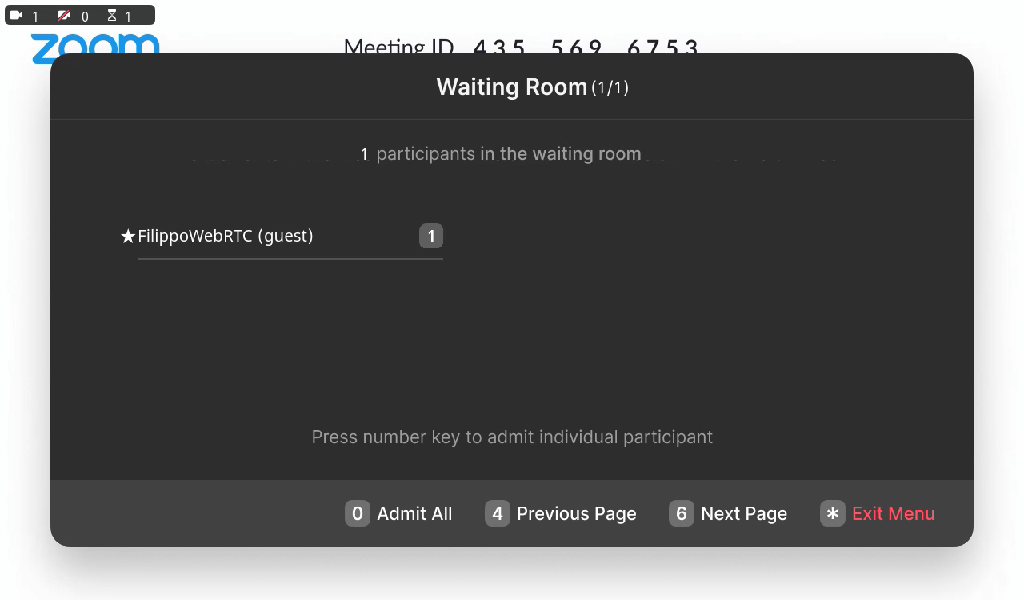
- you also have a pretty good view on the lobby, as you can see in the example below.
Implementation
Now that we have seen what is possible, if you are interested in replicating this setup, just follow the instructions below. So let’s move on with the implementation!
Note: If you need help in getting your LGW to register, check out the LGW configurator.
Control Hub
In Control Hub these are the steps we need to take:
- Decide on a prefix that is associated to Zoom. In my case I’ve picked
*9and96(from the KeypadZ-M) - you must have the numeric prefix, but the star code is optional. (If you decide that you are fine with just a numerical sterring prefix, skip the next ste and go straight to step 3, creating the dial-plan); - Create the translation pattern for the
*9sequence (reason being that you can’t have*in Webex Calling dial plans); - Create the Dial plan entries (I’ve considered meeting IDs of 10 and 11 digits)
Translation Pattern
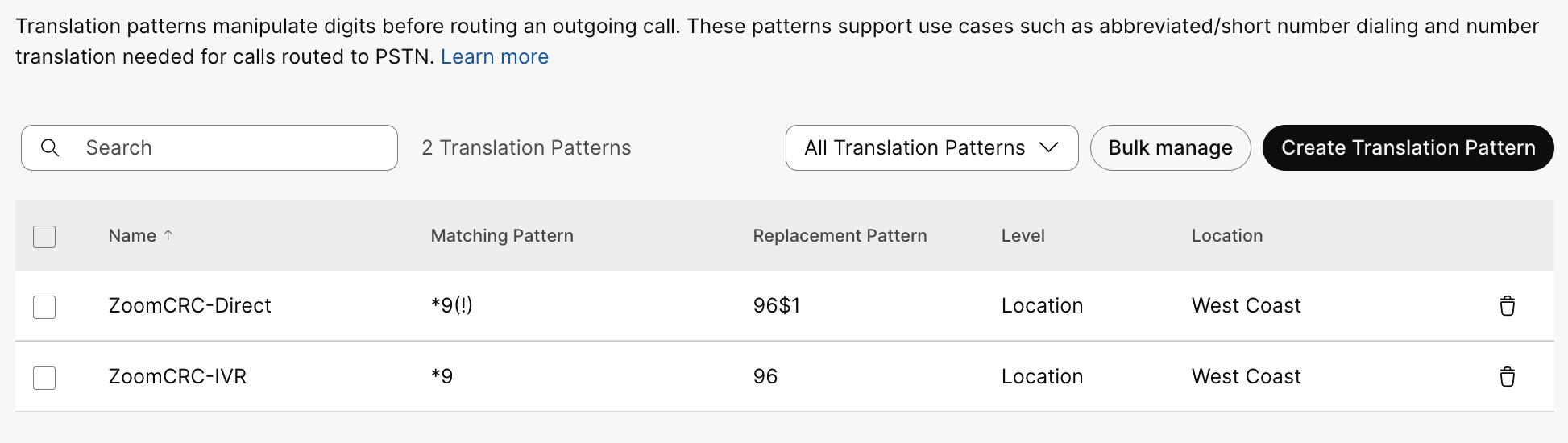
The two patterns are:
*9which is replaced by96*9(!)which is replaced by96$1
Dial Plan
The entries to add to the Dial Plan associated to the LGW are:
96(Z - M), this is used for the generic IVR in Zoom CRC;96XXXXXXXXXX(prefix plus ten digits) for personal meeting rooms (usually 10 digits long);96XXXXXXXXXXX(prefix plus 11 digits) for ad-hoc meetings whose ID is 11 digits long.
Phones
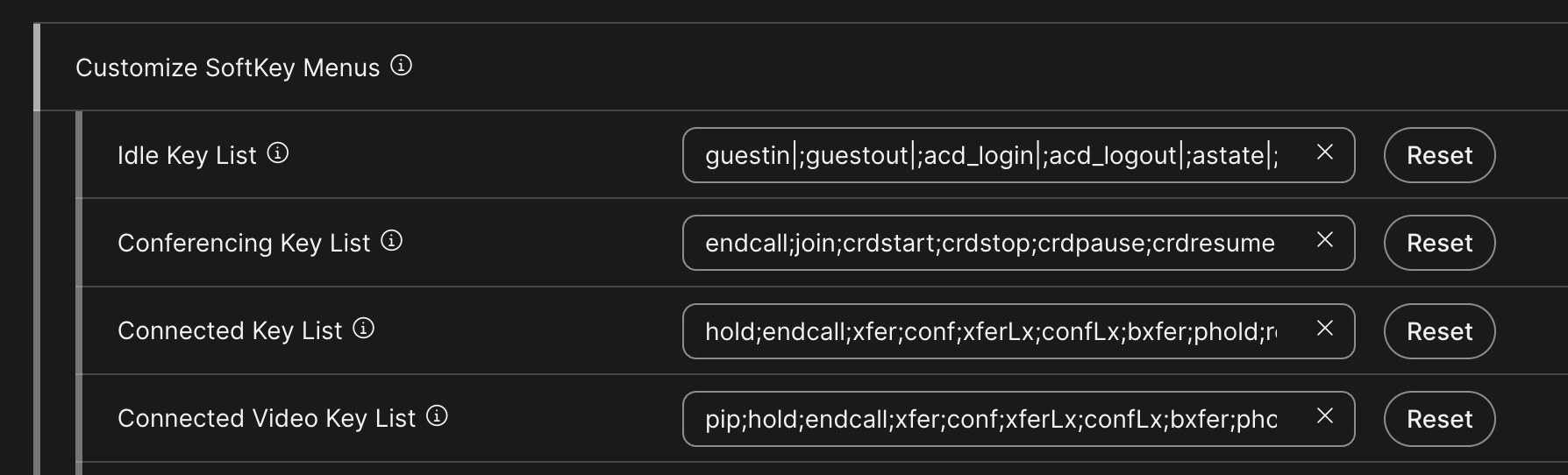
No specific configuration is needed on the phones, but I’ve noticed the 8845 and 8865 do not present a softkey for PIP (picture-in-picture) while you are connected, so you could consider fixing that by adding the softkey in the phone configuration, like this:
Local Gateway
This is the piece of the architecture where the actual connection to CRC takes place. The Local Gateway can be registration-based, and can be virtualized. I’m assuming here that the LGW is already configured and able to receive inbound calls, so I’m not going to describe that part. It’s worth pointing out that depending on the pool of users you need to serve for this call flow, some sizing should be done on the LGW itself.
The following configuration assumes that you are able to perform digit-based routing (as opposed to any other routing sstrategy, for example dial-peer groups). If you are using dial-peer groups, then you have to create a specific trunk for this dial-plan and match on the OTG/DTG. I’m also assuming that DNS resolution works fine on the router.
We need to add these sections (this is the bare minimum):
voice translation-rule 9666
 rule 1 /^96$/ /0000/
 rule 2 /^96\(.*\)$/ /\1/
!
voice translation-profile OUTGOING-TO-ZOOM
 translate called 9666
!
voice class e164-pattern-map 9666
 description FOR ZOOM CRC INTEROP
  e164 ^96$
  e164 ^96..........$
  e164 ^96...........$
 !
!
voice class sip-profiles 9666
 rule 10 request INVITE sip-header SIP-Req-URI modify "sip:0000@" "sip:"
 rule 20 request INVITE sip-header To modify "sip:0000@" "sip:"
!
dial-peer voice 9666 voip
 description Outbound Towards ZOOM CRC
 translation-profile outgoing OUTGOING-TO-ZOOM
 video codec h264
 session protocol sipv2
 session target dns:zoomcrc.com
 session transport tcp tls
 destination e164-pattern-map 9666
 voice-class stun-usage 200
 voice-class sip profiles 9666
 dtmf-relay rtp-nte sip-kpml
 srtp
 codec opus
 no vad
You can replace the dns:zoomcrc.com domain with the geographic domain name that suits your deployment’s location. The list of locations (Australia, Canada, Germany, etc…) is available in the “H.323/SIP Room Connector” menu, under “Room Management” (you must be a site administrator to see this information).
I’ve reused a STUN voice class (for firewall traversal reasons), but if you need to configure it it’s very simple (the password is a placeholder, it’s not actually relevant unless you configure TRP on a Cisco Firewall):
voice service voip
 stun
  stun flowdata agent-id 1 boot-count 36
  stun flowdata shared-secret 6 <encoded random password>
!
voice class stun-usage 200
 stun usage firewall-traversal flowdata
 stun usage ice lite
Final Comments
Send me a message if you found this content useful, or if you have anything to add or correct, and obviously …the usual disclaimer:
this article is not sponsored/funded or endorsed by Cisco Systems or Zoom. This is for educational purposes only. Under no circumstance this post represents a design recommendation, and can not substitute specific IT architecture and engineering work for a given use case. In no event shall the author be liable for any loss or special, indirect or consequential damage of any kind resulting from the use of, access to, or reliance on the information contained within this website. No claim of official support can be made based on the sole content of this blog post.